
I love to just throw anything in my knowledge vault. From articles I want to remember or extract knowledge from, to cool painting I want to do master studies from to new ideas for articles. This leads to stuff piling up at the top of my vault. You know how it goes ... all of it lands in the vault root because that's the fastest capture path. And then it sits there. For days. Until my vault root looks like a junk drawer.
I finally got tired of the manual sorting loop: open file, read it, decide on tags, add frontmatter, move to Inbox, repeat. So I built a script that does most of that for me, running entirely on my machine.
Why on-device matters
There's an open-source CLI tool called apfel that wraps Apple's on-device Foundation Model (macOS 26+). It gives you a simple command-line interface to the same model that powers Apple Intelligence features. The relevant bit for this use case: it can read both text files and images, and it can constrain its output to a JSON schema you provide.
No API keys. No cloud calls. No token billing. The model runs on your Mac's Neural Engine and never leaves your machine. If you've been reading my local-first pieces, you know this is exactly my lane. Your notes are yours. The AI that processes them should be yours too.
The core technique: schema-constrained output
The key idea here is the --schema flag. Instead of hoping the model returns clean JSON (and writing brittle parsing code for when it doesn't), you hand apfel a JSON schema and it guarantees the output conforms to it.
Here's what a call looks like:
apfel -q --temperature 0 \
  -f "meeting-notes-standup.md" \
  --schema tagging-schema.json \
  "You are tagging content for an Obsidian vault inbox workflow. Return JSON matching the schema."
And here's what comes back:
{
  "tags": ["team-standup", "project-planning", "q3-roadmap"],
  "topic": "Weekly standup notes covering Q3 roadmap priorities",
  "summary": "Notes from the Monday standup covering sprint allocation for the Q3 roadmap. Includes discussion of blocked items and a decision to defer the analytics dashboard.",
  "confidence": 0.87,
  "suggested_filename": "meeting-notes-standup.md"
}
The schema I use defines five fields: tags (1-6 lowercase kebab-case strings), topic (one-line summary), summary (1-3 sentences), confidence (a 0-1 float), and suggested_filename (proposes a better name for generically-named files like "Pasted image 20260706.png").
The schema enforcement is the whole trick. You get valid, parseable JSON every single time. No regex cleanup. No "retry if malformed." It just works.
The pipeline
The actual workflow is a Python script that does four things:
1. Scan the vault root. It picks up qualifying files (markdown, images, PDFs) sitting at the top level of the vault. Only the root, not subfolders.
2. Call apfel for each file. The script passes the file content and a tagging prompt. The prompt includes context about my existing tag vocabulary so it reuses tags I already have rather than inventing new ones. For images, apfel reads the visual content directly. A photo of handwritten notes? It reads the handwriting. A screenshot of a recipe? It pulls out the subject matter.
3. Apply metadata. For markdown files, it upserts tags, topic, summary, and confidence in YAML frontmatter with fresh values, while leaving any other existing frontmatter fields alone. For binary files (images, PDFs), it creates a sidecar .md note that embeds the file and holds the metadata, since images can't carry their own frontmatter.
4. Move to a staging Inbox folder. Processed files land in the vault's Inbox directory. Not in their final home. This keeps me in the loop for the last step of organization. The script sorts and tags; I decide where things ultimately live.
The confidence safety net
Not every file is easy to classify. A blurry screenshot with two words on it? A markdown file that's just a URL with no context? The model knows when it's guessing.
That's what the confidence field handles. I set a threshold (0.5 in my config). When confidence comes back below that, the script doesn't apply the suggested tags at all. Instead, it adds a single needs-triage tag. The file still moves to the Inbox, still gets a summary, but I know at a glance which ones need my attention vs. which ones the model handled confidently.
This prevents the "AI silently misfiles something important" failure mode. Low-confidence results get flagged, not trusted.
Renaming generic files
One nice bonus: when a file has a generic name (like "IMG_4382.png" or "Pasted image 20260712.png") and the model is confident about what it contains, the script renames it to something descriptive. A photo of a conference badge becomes "conference-badge-devcon-2026.png" instead of a meaningless timestamp.
Running it
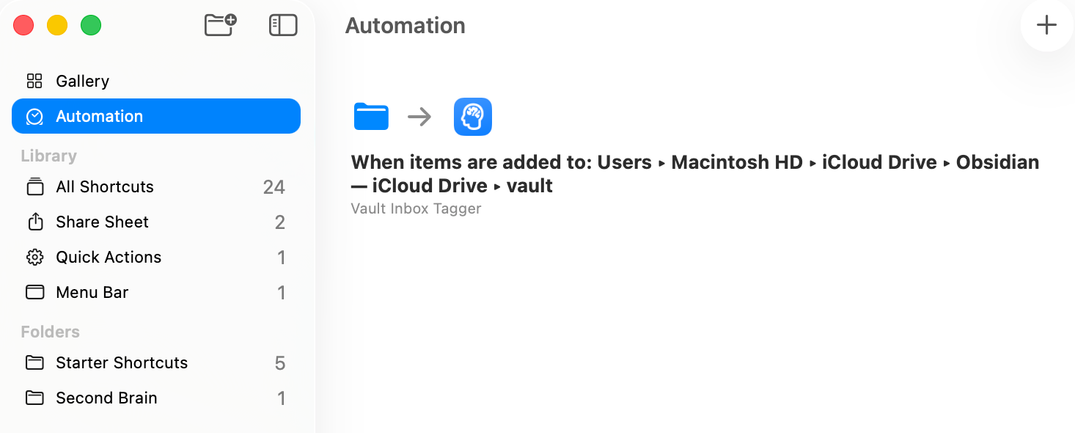
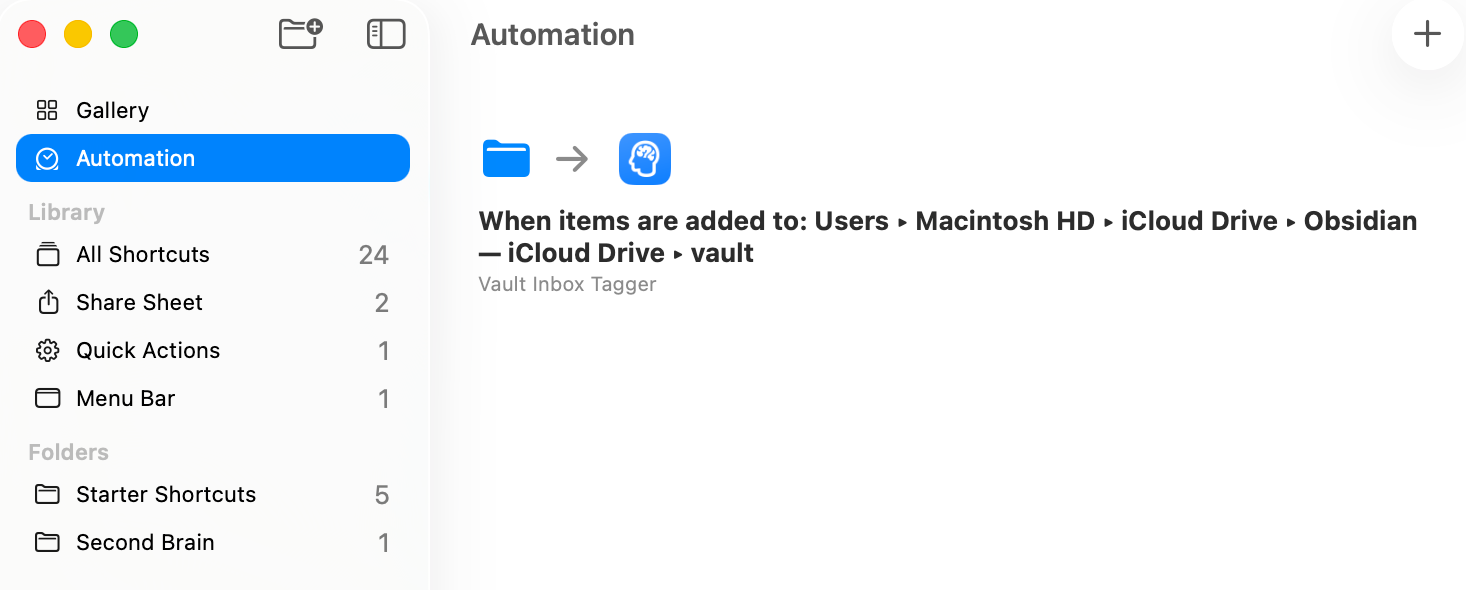
I can trigger the script manually, for testing purposes, from the terminal. But I set it up to run automatically via a macOS Shortcut with a Folder automation that fires when new files appear in the vault root.
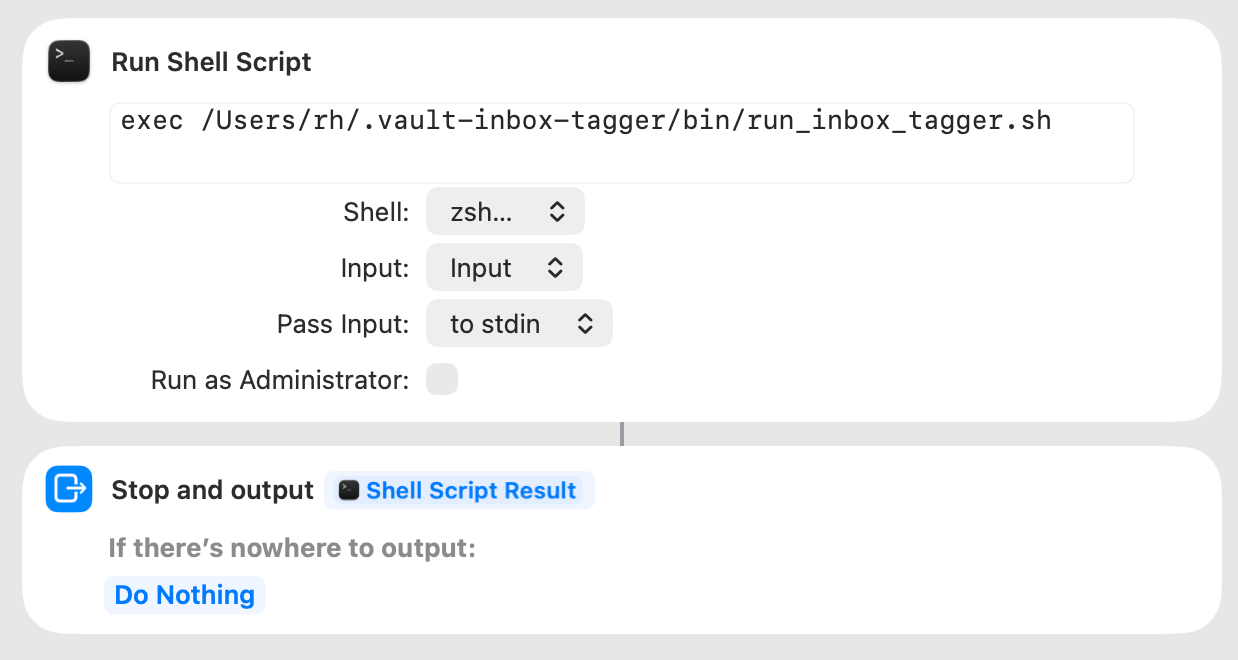
The Shortcut setup is a bit of GUI clicking in Shortcuts.app (folder trigger, "Run Shell Script" action pointing at the wrapper), but the interesting technical work is all in the CLI and schema.
In Shortcuts, setup a new Action using the 'Run Shell Script' option: exec /Users/rh/.vault-inbox-tagger/bin/run_inbox_tagger.sh
The have it automatically be triggered by creating an Automation with the Vault's folder:
Try this yourself
You'll need macOS 26+ and the apfel CLI installed (it's on Homebrew). Then:
- Write a schema. Define the fields you want back. Start with just
tagsandconfidenceif you want to keep it simple. Use JSON Schema'spatternproperty to enforce your tag format. - Write a prompt. Tell the model your tagging conventions. List example tags from your vault so it reuses your vocabulary. Be explicit that low confidence should yield conservative results.
- Pipe a file through it. Run
apfel -f <yourfile> --schema <schema.json> "your prompt"and see what comes back. Iterate on the prompt until the tags feel right for your system.
That's it. You can build the full automation pipeline later. The schema-constrained output is the foundation that makes everything else reliable.
You can also look at mine which is here: https://github.com/reginahack/vault-inbox-tagger.
Your Action Items
- Install apfel and run one test. Pick a random note from your vault root, write a minimal two-field schema (tags + confidence), and see what comes back. Five minutes.
- Audit your tag vocabulary. List your 20 most-used tags. Put them in your prompt so the model reuses them instead of inventing synonyms.
- Decide your confidence threshold. What score makes you comfortable trusting the model's tags without review? Start at 0.5 and adjust after a week of results.
References
Apple Inc. (2026). Foundation Models framework. Apple Developer Documentation. https://developer.apple.com/documentation/foundationmodels